
I save quite a few Instagram posts where the useful part isn't really the caption. It's the text inside the images: checklists, tutorials, collections of tools, article snippets, or short explainers. The problem usually comes later, when I want to do something with that text instead of just reading it again. Maybe I want to move it into my notes, save it in a document, or paste it into ChatGPT.
So I decided to put the different ways of copying text from Instagram in one place. And pretty quickly, I realized that "how do I copy text from Instagram?" is actually several different questions.
If the text is inside a photo or graphic, it needs to be recognized first. On iPhone, Live Text is usually the easiest built-in option; on Android, Google Lens works well. If you need the caption, opening the post in a browser is often simpler. Comments are another case again. And if the useful content is spread across several carousel slides, taking screenshots one by one starts adding a lot of unnecessary steps.
| What you want to copy | What I'd use |
|---|---|
| Text from one image on iPhone | Screenshot + Live Text |
| Text from one image on Android | Screenshot + Google Lens |
| Post caption | Post link + browser |
| Comment | Screenshot + Live Text / Google Lens |
| Text from many carousel slides | Process the public post from its link |
Why Can't I Copy Text from Instagram?
The first thing to figure out is where the text actually lives.
A caption is normal text, but the Instagram mobile app doesn't always let you select it freely the way you would on a regular web page.
Text inside a photo or graphic is different. As far as Instagram is concerned, it's part of the image. You may be looking at a perfectly readable heading, checklist, or several paragraphs, but there isn't a selectable text layer underneath it.
That's why I wouldn't look for one universal "copy everything from Instagram" trick. It makes more sense to separate the cases first: caption, text inside an image, comment, or a post with several slides. The easiest workflow changes depending on which one you need.
How to Copy Text from an Instagram Photo on iPhone
If I only need something from one image, I'd start with Live Text on iPhone. For this kind of job, I don't think a separate service is necessary.
The basic workflow is:
- Open the image in Instagram
- Take a screenshot
- Open the screenshot in Photos
- Tap the Live Text icon or press and hold the text you want
- Select the relevant text
- Tap Copy
- Paste it into your notes, message, or document
For a single slide, this is genuinely convenient. The screenshot is already on your phone, text recognition is built into iOS, and you can paste the result wherever you need it.
But if the post has 8 or 10 slides, you have to repeat the same workflow for every image. At that point, the number of repeated actions starts to matter more than the fact that your phone can recognize the text.
I covered built-in phone options in more detail in How to Copy Text from an Image on Android and iPhone.
How to Copy Text from an Instagram Photo on Android
The logic is very similar on Android, except Google Lens is usually the easiest option.
I'd do it like this:
- Open the image in Instagram
- Take a screenshot
- Open it in Google Photos or another app with Google Lens available
- Open Google Lens
- Switch to the recognized text
- Select the part you need
- Tap Copy text
If you only need a paragraph or a couple of lines, the workflow is pretty straightforward. The source image is already on your phone, and you can do everything with tools you probably already have.
For one image, I wouldn't make the process more complicated than it needs to be. Built-in recognition is usually the most natural choice.
How to Copy an Instagram Caption
I handle captions differently because there's no reason to OCR text that already exists as text.
One simple option on your phone is:
- Open the Instagram post
- Use the post menu to copy its link
- Open the link in your browser
- Find the caption
- Select the text you need and copy it
On a computer, it's even simpler: open the post in Instagram's web version and select the caption with your cursor.
This is a good example of why separating the types of text matters. A caption needs a browser, while words embedded in an image need text recognition. Mixing the two cases tends to make instructions much more confusing than they need to be.
How to Copy Text from an Instagram Comment
Comments are a slightly awkward case because the mobile app may not give you a normal text-selection option.
If I only need one comment, the simplest workaround is usually the same one I'd use for text inside an image: take a screenshot and use Live Text on iPhone or Google Lens on Android.
That gives you a short path:
- Open the comment on screen
- Take a screenshot
- Open the screenshot in Photos or Google Photos
- Select the comment with Live Text or Google Lens
- Copy it
For a short comment, that's usually faster than trying to find a separate Instagram-specific tool. If you're already on a computer, you can also check the post in a browser and see whether the text can be selected there.
What If the Text Is Spread Across Several Carousel Slides?
This was the scenario I found more interesting.
Imagine an Instagram carousel with eight slides, each containing one part of the same tutorial. Built-in recognition still works, but now the workflow becomes something like: open a slide, take a screenshot, switch to Photos, recognize the text, copy it, paste it into your notes, go back to Instagram, and repeat.
So the problem isn't really OCR quality anymore. It's the number of times you have to repeat the same actions, plus the extra work of putting all those fragments back together in the right order.
This is the case where I use ImgTxtApp, my Telegram bot for extracting text from images.
Instead of taking separate screenshots, I can send the bot a link to a public Instagram post. It processes the images from the post and returns the recognized text in Telegram.
How I Send an Instagram Post to ImgTxtApp
- I open the post in Instagram
- Tap Share
- Choose Telegram
- Select ImgTxtApp
- Send the link
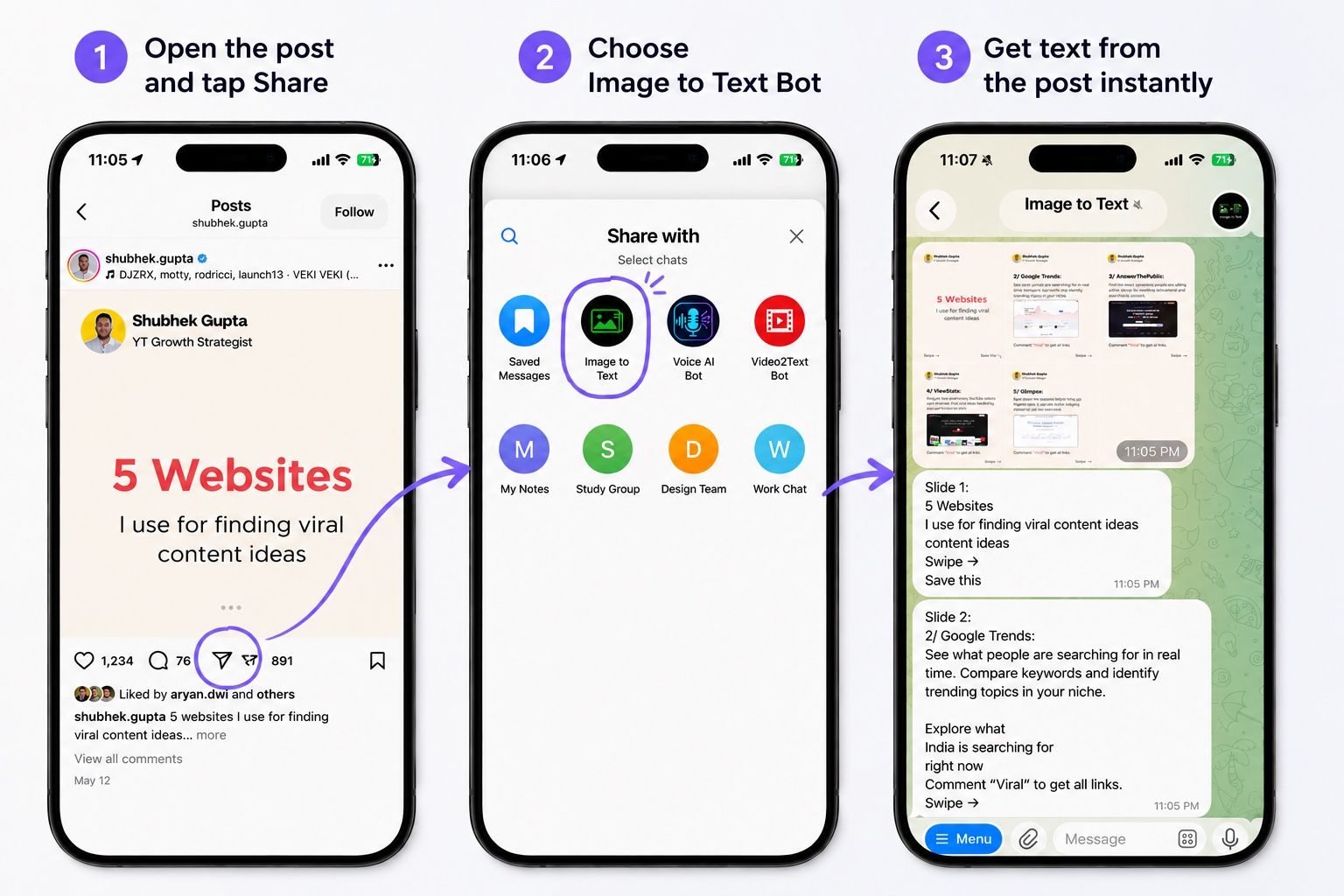
For me, the useful part here isn't simply that the bot can run OCR. It's that I don't have to process every slide manually. The text from the images can be collected in one place while preserving the original slide order.
In the current workflow, ImgTxtApp can also return the post caption together with the text from the images, so I don't have to go back to Instagram and copy the caption separately.
I still wouldn't treat this as a replacement for Live Text or Google Lens. If I need one sentence from one image, the built-in phone tools are simpler. The bot becomes more useful when there are many slides and the manual workflow starts repeating itself.
Processing a post from its link works with public Instagram posts. Content from private accounts isn't accessible this way.Learn more about ImgTxtApp
What to Do When Text Recognition Doesn't Work Well
No text-recognition tool gives the same result on every image. In my tests, the problems usually have less to do with Instagram itself and more to do with how the original slide was designed.
If the text is very small, it can help to open the image at the largest available size or take a higher-quality screenshot. If the letters sit on top of a busy photo or low-contrast background, recognition may skip words or confuse characters.
Decorative fonts can also be harder to recognize, especially when the letterforms are heavily stylized. Handwriting varies even more depending on the writing style and image quality.
I'd check the result particularly carefully when:
- the text is small or blurry
- the letters sit on a complex background
- the post uses a decorative font
- interface elements cover part of the text
- the source image has already been heavily compressed
Sometimes a new screenshot or a tighter crop is enough. If it still doesn't work, I'd try a different recognition method and compare the results rather than assuming the first output is correct.
What You Can't Copy This Way
There are also a few limits worth keeping in mind.
A tool working from an Instagram link can't access content from a private account it isn't authorized to view. Stories and other disappearing content can also be less practical to process from a link, so a screenshot plus Live Text or Google Lens is usually the safer option there.
And if the content is a Reel or video and what you actually need is the spoken audio turned into text, that's a different task. You need transcription rather than image text recognition.
What I'd Choose in Different Situations
I started this test with a pretty simple question: what's the easiest way to copy text from Instagram? But I ended up with roughly the same conclusion I've reached in my other text-recognition tests.
The fact that several tools can recognize text doesn't tell you much about which one will feel easiest. What matters more is where the original content is and what you want to do with the text afterward.
If I need a short fragment from one image on iPhone, I'd use Live Text. On Android, I'd do the same thing with Google Lens. If I need a caption, I'd open the post in a browser. For one comment, a screenshot and the phone's built-in recognition is usually enough.
But when the useful material is spread across many carousel slides, I start looking at the whole workflow: how many screenshots I'll need, how often I'll switch between apps, and whether I'll have to combine separate fragments manually afterward. That's where processing the public post from its link can remove a noticeable amount of repetitive work.
So I wouldn't choose based on which tool is "best." I'd choose based on where the text is and how many unnecessary steps stand between the Instagram post and the finished text where I actually need it.
If You Want to Try It on a Post
The first 5 extractions in ImgTxtApp are free.
You can send the bot an image or a link to a public Instagram post and see which workflow makes more sense for your particular case.