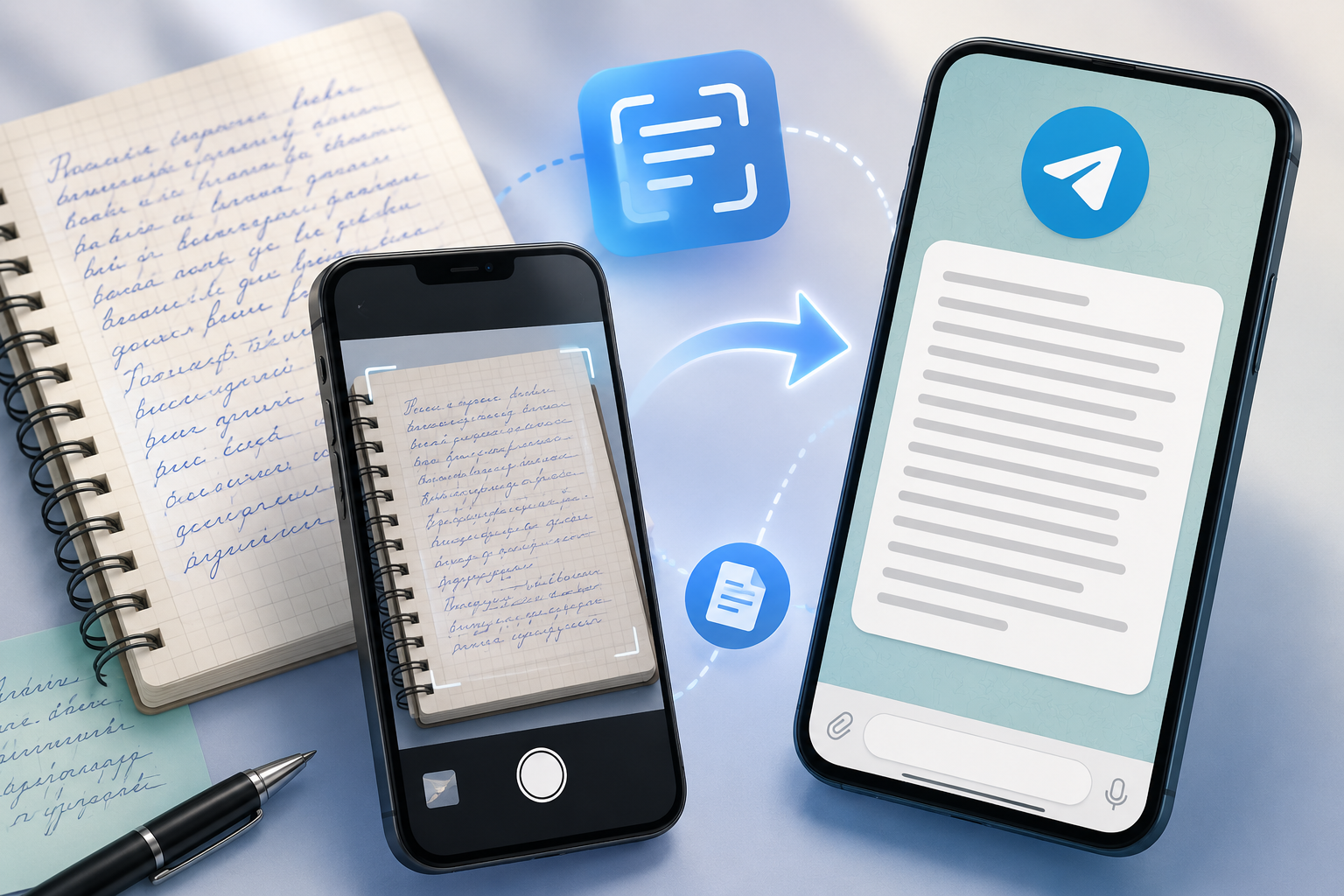
Quick answer: which method should you use?
I started with what seemed like a simple question: what's the easiest way to convert handwriting to text from a photo?
For one neatly written page, the answer is actually pretty straightforward. If the photo is already on your phone, built-in tools such as Live Text on iPhone or Google Lens on Android may be all you need.
But handwritten notes get more complicated once the handwriting becomes messy or cursive, the photo isn't perfectly clear, or you're dealing with ten pages of lecture notes instead of one. At that point, I think it's more useful to look at the entire workflow, not just whether a tool can recognize handwriting at all.
So I compared the main options with a slightly different question in mind: which method makes sense for which kind of handwritten note? There isn't one method I'd use for every handwritten page.
| Your situation | What I'd try first |
|---|---|
| One clear handwritten page already on your phone | Built-in phone tool |
| A few words or a short note | Built-in phone tool |
| A local image on your computer | Online handwriting-to-text converter |
| Messy or cursive handwriting | Try more than one recognition method and compare the result |
| Several pages of the same notes | A tool that can process multiple images together |
| Photos are already in Telegram or another app | A workflow that lets you share the images directly |
| Blurry, dark, or angled photo | Retake the photo before changing tools |
For me, that's the most useful distinction. A method that's perfect for one page can become surprisingly tedious once you have to repeat the same process across an entire notebook.
Convert handwriting with built-in phone tools
If the handwritten page is already on your phone, I'd start with the tools you already have.
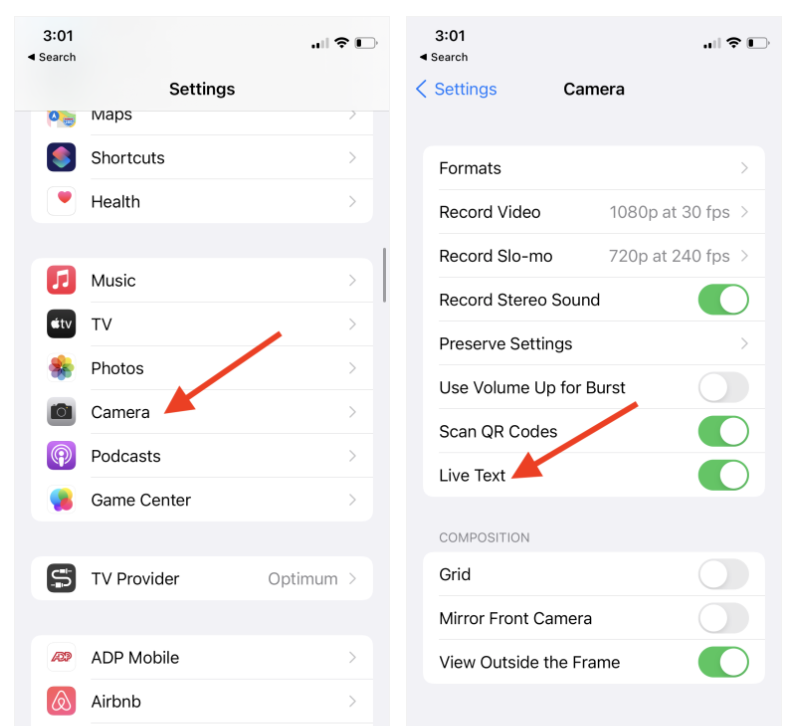
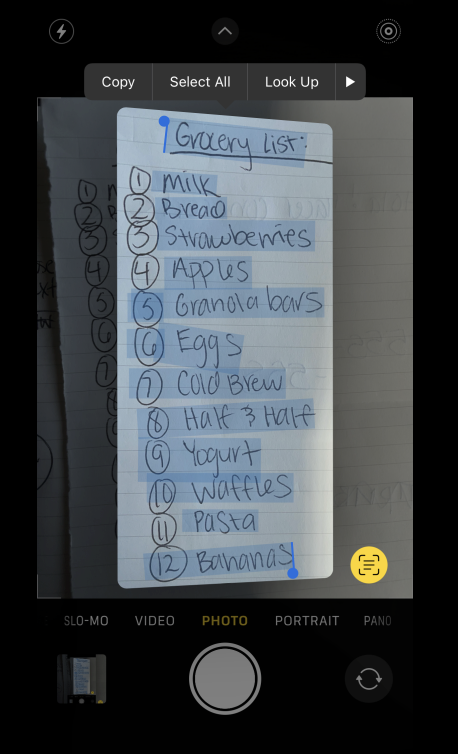
Using Live Text on iPhone
On iPhone, open the photo and check whether Live Text detects the writing. If it does, you can select the recognized text directly on the image, tap "Copy," and paste it into Notes, a document, a message, or wherever you need it.
The basic workflow is very short:
Photo → Live Text → select text → "Copy" → paste
For one page, this is hard to beat because the image doesn't have to go anywhere. There's no separate upload and no additional service to open.
The limitation appears when the handwriting itself becomes harder to interpret. Connected letters, unusual letter shapes, uneven lines, corrections, and abbreviations can all lead to missing or incorrectly recognized words.
So if I had one reasonably neat page already in Photos, this would still be my first option. I wouldn't add another tool unless the result gave me a reason to.
Using Google Lens or Google Keep on Android
On Android, Google Lens is one of the easiest places to start. You can open an image, select the detected text, and copy it into another app.
Another option is Google Keep. Add the photo to a note, open the image, and use "Grab image text." The extracted text then appears inside the note, where you can edit or copy it.
A typical Google Keep workflow looks like this:
Google Keep → add photo → open image → "Grab image text" → review the result
Again, I think this makes the most sense when you're dealing with a relatively small amount of handwriting and the images are already on your phone. I went through both of these built-in options in more detail in How to Copy Text from an Image on Android and iPhone, where the text is printed rather than handwritten.
Once you're processing page after page, the recognition itself isn't necessarily the biggest problem anymore. Repeating the workflow becomes part of the task too.
Where built-in handwriting recognition starts to struggle
There's an important distinction between a tool being able to recognize handwriting and giving you a result that's actually useful.
With neat handwriting, those two things may be almost the same. With cursive or messy notes, they're not.
A tool might correctly recognize most of a paragraph but misread a date, a name, an abbreviation, or a few connected words. If you only have to fix two or three mistakes, that's still much faster than typing the page manually. If you have to reconstruct every other sentence from the original photo, the recognition hasn't saved much time.
I'd pay particular attention to:
- names and surnames
- dates and numbers
- abbreviations
- connected cursive letters
- crossed-out or corrected words
- text written over ruled or grid paper
- lines written at an angle
I wouldn't treat a claim like "supports handwriting" as a guarantee that every handwritten page will work equally well. The actual question is how much correction is left after recognition.
The photo matters almost as much as the handwriting
One thing that's easy to overlook is the source image itself.
Before deciding that a recognition tool can't read your handwriting, I'd check the photo. A fairly readable page can become much harder to process when it's photographed at an angle, part of it is in shadow, the camera isn't focused properly, or an entire notebook spread has been squeezed into one distant shot.
The best results usually come from a page that's lying relatively flat, photographed from above, with the writing in focus and fairly even lighting. Shadows from your hand or phone, glare, curved pages, and very small text can all make recognition harder.
If the writing is too small in the image, taking a closer photo may work better than trying another converter immediately.
That's probably the simplest troubleshooting step in the whole process: if the first result is unexpectedly bad, try a better photo before changing tools.
Converting multiple pages of handwritten notes
This is where the workflow changes quite a bit.
Imagine you have eight pages of lecture notes. With a built-in phone tool, you can open the first photo, select the recognized text, copy it, paste it into your document, go back to Photos, open the next image, and repeat the same process.
It works. But by page eight, you're solving a different problem from the one you started with.
Instead of asking only "Can this recognize my handwriting?", you're now asking "How many times do I have to repeat this before I have one usable document?"
This is one of the reasons I built ImgTxtApp. Since it's my own tool, I wouldn't pretend it's automatically the right choice for every handwritten note. For one neat page already open on an iPhone, I'd still use Live Text.
The more interesting case is a longer set of notes.
With ImgTxtApp, you can send several images in one request and get the extracted text back together, rather than recognizing and copying each page separately. If the photos are already in Telegram or another app, you can also share them directly instead of first saving each image and then uploading it somewhere else.
The workflow becomes:
Select the photos → send them to ImgTxtApp → receive the text → review and use it
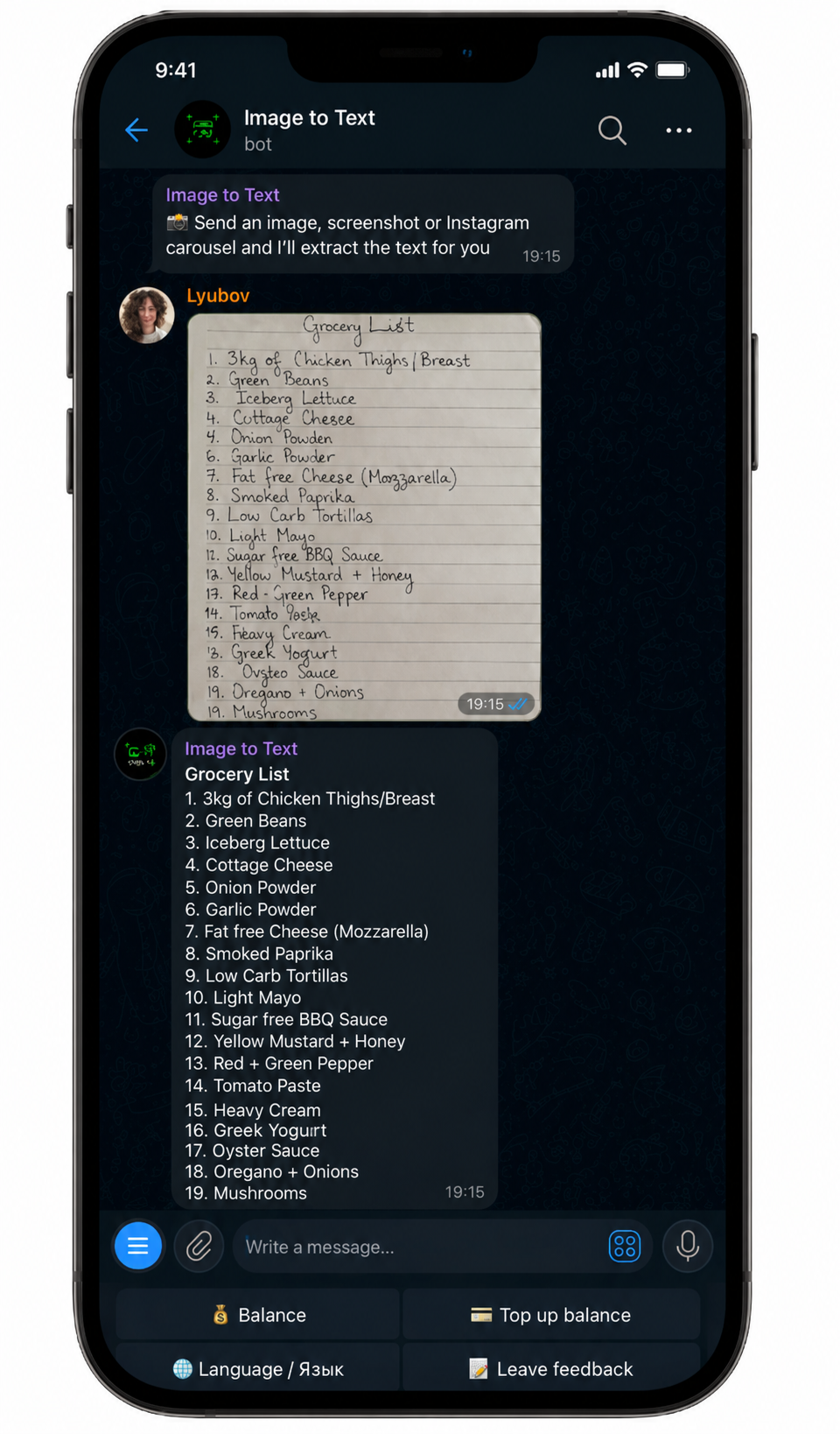
For me, that's where a separate tool starts making more sense: not because built-in recognition suddenly becomes useless, but because the amount of material changes the workflow around it.Learn more about ImgTxtApp
What about online handwriting-to-text converters?
A web converter can be a very natural option when the image is already on your computer.
You open the website, upload the photo, wait for it to be processed, and copy or download the result. There's no reason to move a local desktop file to your phone just to use mobile text recognition.
This is why I don't think "built-in tool vs. online converter vs. Telegram bot" is a particularly useful ranking by itself. The location of the original image matters.
If the file is already on your computer, a web tool may give you the shortest path. If it's already in Photos on your iPhone, Live Text may be shorter. And if you're dealing with several images that are already in a messenger, sharing them directly to a bot can remove some of the intermediate steps.
The recognition technology matters, but so does everything you have to do before and after it.
Built-in tools vs. online converters vs. a Telegram bot
Here's how I'd think about the three workflows rather than trying to declare one of them the winner.
| Built-in phone tools | Online converter | Telegram bot | |
|---|---|---|---|
| Best starting point | Photo already on your phone | File already on your computer | Images already in a messenger or several pages |
| Installation required | No | No | Telegram needs to be available |
| Good for one page | Yes | Yes | Yes |
| Multiple images in one request | Depends on the tool | Depends on the service | Yes, with ImgTxtApp |
| Direct sharing from another app | Depends on the device/app | Usually requires an upload | Yes |
| Messy handwriting | Result varies | Result varies | Result varies |
| Result | Select/copy recognized text | Usually copy/download | Text returned in the chat |
I deliberately wouldn't add a row saying which one has the "best accuracy." With handwriting, that's too dependent on the page, the language, the handwriting style, and the quality of the photo.
For anything important, I'd check the recognized text against the original regardless of which method produced it.
What to do when handwriting is recognized incorrectly
Recognition errors aren't unusual, especially with cursive.
Before trying to fix the entire result manually, I'd first look for patterns. Maybe the tool consistently confuses the same two letters, struggles with numbers, or loses words where the page curves near the binding. That tells you whether a new photo might help or whether the problem really is the handwriting.
If most of the text is correct, manual cleanup is usually still worthwhile. I'd check names, dates, numbers, abbreviations, and any sentence that suddenly stops making sense.
For a particularly difficult page, it can also be useful to try a second recognition method and compare the two results. I wouldn't assume that one tool will always perform better across every handwriting style.
And if the original handwriting is genuinely difficult for a person to read, I'd be especially cautious. Automated recognition can make a plausible-looking guess that isn't necessarily the word that was actually written.
What can you do with the text afterward?
Once the handwriting has been converted into editable text and checked, you can treat it like any other text.
You can move it into Google Docs or Notion, search through it, reorganize your notes, or use it as input for ChatGPT, Claude, or Gemini.
For example, after digitizing a lecture notebook, you could ask an AI assistant to turn the notes into an outline, summarize the main ideas, create flashcards, or clean up the structure.
I think it's useful to keep these two stages separate, though. First you need a reasonably accurate transcription of what's actually on the page. Only then does it make sense to summarize, rewrite, or reorganize it.
Otherwise an OCR error can quietly become part of the AI-generated summary.
So, which method should you choose?
I started with a simple question: what's the easiest way to convert handwriting to text? But after looking at the different scenarios, I think the more useful question is: where are the images, how much material do you have, and how difficult is the handwriting?
If you have one neat page already on your phone, I'd use the built-in tool first. It's already there, the workflow is short, and adding another service probably won't make things easier. If the image is a local file on your computer, an online converter can make more sense.
And if you're dealing with a longer set of handwritten notes, especially several images that are already on your phone or inside another app, I'd start thinking about the entire path from those images to one usable piece of text rather than recognition alone.
The same applies to messy handwriting. I wouldn't look for a tool that promises to "read everything." I'd try the result, see how much correction it actually needs, and decide whether it saved me time.
And since one of the workflows I tested here is my own Telegram bot, I'll leave it here 🫠 The first 5 extractions in ImgTxtApp are free. You can send it one handwritten page or several images and see how it handles your own handwriting.